

Add Watermark to Video Free Online | Complete Guide
Your video is live. Someone downloads it, strips your credit, and reposts it as their own.
This event happens every day. A watermark stops it.
You do not need paid software. You do not need to install anything. With a free online video watermark tool, you can protect your content in minutes, right from your browser. Opinohive offers a full suite of free online tools built for creators and bloggers.
This guide shows you exactly how to add watermark to video free, what options to use, and why it matters for your brand.
Table of content
What Is a Video Watermark?
A video watermark is a visible or semi-transparent stamp placed on your video. It shows text, a logo, or both. It tells viewers who made the video and makes unauthorized reuse harder to hide.
Creators, marketers, educators, and businesses use watermarks to protect their video content and build brand recognition at the same time.
You get two benefits from one action: protection and branding.
Why Use a Free Online Video Watermark Tool?
Desktop software costs money and takes disk space. A free online video watermark tool gives you the same output with zero cost and zero installation.
Here is what a good free video watermark tool online does:
- Adds text overlay or logo branding to MP4, AVI, and other formats
- Lets you adjust position, size, opacity, and custom font
- Supports batch watermarking for multiple videos at once
- Keeps your file quality intact after watermarking
- Works on any browser, on any device
Opinohive’s free video watermark adder online is built for speed. Upload, customize, and download. No account needed.
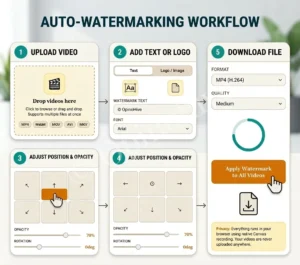
How to Add Watermark to Video Free Online: Step-by-Step
Step 1: Open the Free Online Video Watermark Tool
Go to Opinohive’s watermark tool. No signup. No email. Just open the page and start.
Step 2: Upload Your Video
Click “Upload Video.” The tool supports MP4, AVI, MOV, and MKV. For large files, MP4 is the fastest format to process.
Your file uploads directly in the browser. Nothing is stored permanently.
Step 3: Choose Text or Logo Watermark
You have two options.
Text watermark: Type your channel name, website URL, or copyright notice. Pick your custom font, size, and color.
Logo watermark: Upload your PNG logo file. Transparent PNG logos work best for a clean, semi-transparent logo overlay.
Step 4: Set Position and Opacity
Drag your watermark to any corner or the center of the frame. The position-adjustable stamp feature lets you place it exactly where you want.
Set opacity between 30% and 70% for a transparent video watermark that stays visible without blocking your content.
Step 5: Preview and Download
Preview your watermarked video before downloading. If it looks right, click Download. Your MP4 watermark editor saves the file to your device instantly.
How to Add a Text Watermark to Video Free
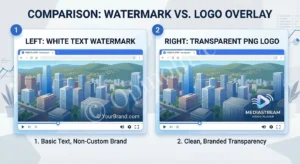
Text watermarks are the fastest option. They work for YouTube creators, course sellers, and anyone who needs a quick video protection stamp branding without a logo file ready.
On Opinohive’s tool:
1. Select “Text Watermark” mode
2. Type your text (keep it short, 2 to 5 words)
3. Choose your custom font and color
4. Set size relative to the video frame
5. Adjust position using the drag control
6. Set transparency to 40% to 60% for clean results
A text watermark like © YourBrand.com in white with 50% opacity gives you a professional result in under 60 seconds. For more watermark creation ideas, read 7 Genius Ways to Make a Watermark for Free.
How to Add a Logo Watermark to Video Free
A logo watermark video is stronger for brand recall. Viewers recognize your logo before they even read your channel name.
For the best results with a logo watermark video free tool:
- Use a PNG file with a transparent background
- Keep the logo small, 10% to 15% of the video width
- Place it in the bottom-right or top-right corner
- Set opacity to 50% to 60% for a clean, semi-transparent logo
Opinohive’s tool accepts PNG logos up to 5 MB. The no-download video editor processes your logo watermark directly in the browser. Do you also watermark photos for your blog or Instagram? See How to Watermark Photos for Blog and Instagram for the full guide.
Batch Video Watermark Free Online: Save Hours
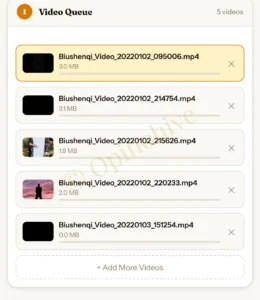
If you produce multiple videos per week, watermarking them one by one wastes time.
Opinohive’s batch watermarking feature lets you upload multiple video files and apply the same watermark settings to all of them at once.
This is the quickest way to add watermark to video free for a full library of content. Educators with video courses, training teams, and content agencies use batch video watermarking online to protect hundreds of files without repetitive work.
Best Practices for Video Watermarking
Follow these to get the most from your free online video watermark.
Position matters. Place your watermark where it is hard to crop out. The center-bottom or corner positions work well, but avoid dead corners where video editors easily crop.
Keep it readable. A watermark too small to read defeats the purpose. Size it so it is visible on mobile screens.
Stay consistent. Use the same position, font, and opacity across all your videos. Consistency builds brand recognition.
Use transparent overlays. A fully opaque watermark distracts viewers. A transparent video watermark at 40% to 60% opacity keeps focus on your content while staying visible.
Watermark before publishing. Always watermark before you upload to any platform. Watermarking after distribution is too late. For additional legal protection options, explore Creative Commons Licensing for your video content.
Free Video Watermark vs. Paid Software: Honest Comparison
| Feature-Free | e Online Tool (Opinohive) | Paid Desktop Software |
|---|---|---|
| Cost | Free | $30 to $200+/year |
| Installation | None | Required |
| Text Watermark | Yes | Yes |
| Logo Watermark | Yes | Yes |
| Batch Watermarking | Yes | Yes |
| Transparent Overlay | Yes | Yes |
| MP4/AVI Support | Yes | Yes |
| Browser-Based | Yes | No |
For most individual creators and small teams, a free video watermark online tool covers everything you need.
Who Needs a Video Watermark?

YouTube creators. Protect your original content from re-uploaders. Learn how YouTube handles copyright claims at the YouTube Copyright Center.
Online course sellers. Brand every lesson with your logo or URL. Deter piracy.
Freelance videographers. Send watermarked previews to clients before final delivery.
Social media teams. Brand short-form video with your handle before posting.
News and media teams. Protect footage with a visible video protection stamp.
Businesses. Add logo branding tool overlays to training and product videos.
Supported Formats on Opinohive’s Free Watermark Tool
The free video watermark online tool on Opinohive supports the following:
- MP4 (most common, fastest processing)
- AVI overlay maker compatible
- MOV
- MKV
- WebM
All output files download as MP4s for maximum compatibility.
Related Tools You May Need.
Browse all Opinohive tool guides to get the most from every free tool on the site.
Frequently Asked Questions
Q: Is Opinohive’s video watermark tool completely free?
Yes. The tool is free to use with no signup, no subscription, and no hidden fees. You upload, watermark, and download at no cost.
Q: What video formats does the free online video watermark tool support?
The tool supports MP4, AVI, MOV, MKV, and WebM. All output downloads as MP4.
Q: Does the tool store my videos?
No. Your files are processed in the browser session and are not stored on Opinohive’s servers permanently after download.
Q: How do I add a text watermark to a video for free without a logo?
Select the text watermark mode, type your text, set your custom font and size, choose a position, set opacity, and download. No logo file needed.
Q: Can I do batch video watermarking for free online?
Yes. Opinohive’s batch watermarking feature lets you process multiple videos with the same settings in one go.
Q: What opacity setting gives the best transparent video watermark result?
Between 40% and 60% opacity gives you a visible but non-distracting semi-transparent logo or text overlay. Start at 50% and adjust from there.
Q: Can I watermark MP4 videos without downloading software?
Yes. The MP4 watermark editor on Opinohive is browser-based. No download, no installation required.
Q: What is the difference between a text watermark and a logo watermark?
A text watermark uses typed words such as your channel name or URL. A logo watermark uses a PNG image of your brand graphic. Both protect your video. Logos add stronger visual brand recognition.
Validate your page schema at the Google Rich Results Test before publishing.